Broadcast
Read this first: risk & responsibility
Broadcasts in Onix use WhatsApp Web (QR scan), not the official Meta API. WhatsApp can restrict or ban a number that sends too much, too fast, or to people who do not know you and report it as spam. The risk of the number being banned is entirely the responsibility of the user/number owner — Onix is not liable for losses caused by a restricted or banned number.
- Use a dedicated broadcast number, separate from the number your support team uses to serve customers. If the broadcast number is banned, support keeps running.
- Send only to contacts who have agreed to receive messages from you (customers, members, or people who have chatted with you), and do not overdo it.
- Always include a way to stop (the STOP line) and respect contacts who unsubscribe.
- Need large volumes or more safety? Use the WhatsApp Business Platform (the official Meta API) through an official provider.
- Before a broadcast starts you must tick the risk acknowledgement. It is recorded with your name & time on that broadcast and in the Audit log.
Prepare a broadcast number
- Connect a WhatsApp number as usual in Manage → Channels (see Connect WhatsApp).
- Open that number's Settings and turn on Allow for broadcasts (off by default). Only allowed, connected numbers can be chosen as the sender.
- New number: start at 20–30 messages per day, then increase slowly every week. The wizard flags numbers connected less than 14 days ago.
A number sends one broadcast at a time. Other broadcasts on the same number wait until the first one finishes.
Contact segments
A segment is a saved contact filter in Contacts → Segments (all plans). Its members are recalculated every time it is used, so new matching contacts are included automatically.
- Contact data: name, phone number (prefix, e.g. 0812), email (e.g. ends with
@tokomame.co.id), company, job title, city, address, language, contact source. - Labels & owners: Onix labels, WhatsApp Business labels, owner (PIC), client.
- Activity: has chatted with a given number/channel, last chatted (within/not within N days, before/after/between dates), contact created, has/has no lead (open/won/lost status, per workflow).
- Custom contact fields: text, number (more than, between, …), choice, and date. For dates of birth there is birthday today, birthday in the next N days, and birthday in month (this month or a given month) — the birth year is ignored and 29 February is celebrated on 28 February in non-leap years.
- Combine up to 15 rules with all rules (every rule must match) or any rule.
- The Matching now panel shows the number of contacts, those with a WhatsApp number, those unsubscribed, and sample contacts. Segments can be downloaded as CSV.
Example: no date-of-birth column yet? Create a custom contact field Date of birth (date type) in Manage → Labels & custom fields, fill it in on contact profiles or via import, then create the segment Date of birth · birthday in month · this month.
Segments follow their creator's data limits: contacts from channels you cannot access are not counted.
Creating a broadcast (4-step wizard)
Open Broadcast → + Broadcast, or Create broadcast from a segment page. The draft is saved automatically; you can close the wizard and continue later.
- Audience — choose an existing segment, or create a new filter (it can be saved as a segment right away). Choose the sender number. Set the
recipient safeguards:
- Only contacts who have chatted with this number — on by default and the safest. Turning it off raises the risk of spam reports.
- Skip contacts who recently received a broadcast in the last N days (default 7 days).
- Always skipped: unsubscribed contacts, contacts without a phone number, duplicate numbers, and numbers not registered on WhatsApp (checked when sending).
- Message — write 1–5 variations used in turn so messages are not identical. Insert the variables
{nama}(name),{nama_depan}(first name),{perusahaan}(company),{kota}(city),{klien}(client), or a custom contact field key, with a fallback when the data is empty:{nama_depan|there}. Add one attachment (image, video, or document; the message becomes its caption). An unsubscribe line is added at the end (editable; turning it off is not recommended). The Preview uses real contact data, and Send test sends to one number (does not use quota, at most 10 times per hour). - Schedule & pacing — Start now or Schedule (up to 90 days ahead). Set the sending days & hours (workspace time zone, default 08:00–20:00), the daily limit per number (default 150, at most 500 messages), the random delay between messages (default 30–90 seconds, at least 15 seconds), the hold — a 10-minute rest every 20 messages (adjustable) — and the "typing…" indicator. The side panel shows the estimated finish.
- Review — the summary, estimated finish, and risk level (low/medium/high with reasons, e.g. a delay that is too short, a high daily limit, a new number, one variation for many recipients, links in the message, no STOP line). Tick the risk acknowledgement, then click Start broadcast now or Schedule broadcast.
When scheduled/started, the recipient list is locked: later changes to the segment do not affect that broadcast. At most 5,000 recipients per broadcast — split larger audiences into several broadcasts.
How messages are sent
- Messages are sent one by one in the background: the recipient's number is checked on WhatsApp, a few seconds of typing indicator, send, then a random delay before the next message. Every N messages there is a rest (hold).
- Outside the sending days & hours sending stops by itself and continues in the next sending window. When the number's daily limit is reached (counting all broadcasts on that number), it continues tomorrow.
- Paused automatically when the number disconnects, WhatsApp restricts sending, several messages fail in a row, this month's quota runs out, the number is no longer allowed for broadcasts, or the plan is no longer Pro/Custom. The broadcast's creator gets a notification and an email (the email can be turned off in Account → Broadcast status emails).
- Controls on the broadcast page: Pause, Resume, Resend failed, Move back to draft (scheduled and not started yet), Cancel (the rest of the queue is not sent), Duplicate, and Delete (draft, completed, or cancelled).
- Broadcast messages do not create new conversations in Interaction, so the team inbox does not fill up. When a recipient replies, the reply arrives in Interaction like a normal chat, and the broadcast message they replied to appears in that conversation marked Broadcast BC-….
Status per recipient
| Status | Meaning |
|---|---|
| Queued | Waiting for its turn. |
| Sent | Accepted by the WhatsApp server (one tick). |
| Delivered | Reached the recipient's phone (two ticks). |
| Read | Opened by the recipient (blue ticks) — only recorded if the recipient has read receipts on. |
| Replied | The recipient replied within 72 hours after the message was sent. |
| Failed | Not sent; the reason is shown in the Notes column. Can be resent. |
| Skipped | Not sent for safety: unsubscribed, no number, duplicate number, recently received a broadcast, never chatted, or not a WhatsApp number. |
| Cancelled | Still queued when the broadcast was cancelled. |
Counts are cumulative: a read message also counts as delivered and sent. Percentages are based on sent messages.
Unsubscribing
- The default line at the end of the message: "Balas STOP untuk berhenti menerima pesan ini." (Indonesian — your customers receive it; change it to suit your audience).
- Broadcast recipients who reply STOP, BERHENTI, or UNSUBSCRIBE are marked unsubscribed automatically; this is recorded in the conversation and the contact timeline.
- The status can be changed manually on the contact profile (the Broadcast panel) by anyone who can manage contacts or broadcasts. Re-enable it only if the contact agrees.
Reports & dashboard
- Broadcast details: real-time progress, the reason it is waiting (delay, hold, outside sending hours, daily limit), per-status cards (click to filter), the recipient list with the exact message sent, and Report — download Excel or CSV per recipient (status, notes, variation, sent, delivered, read, replied, and failed times).
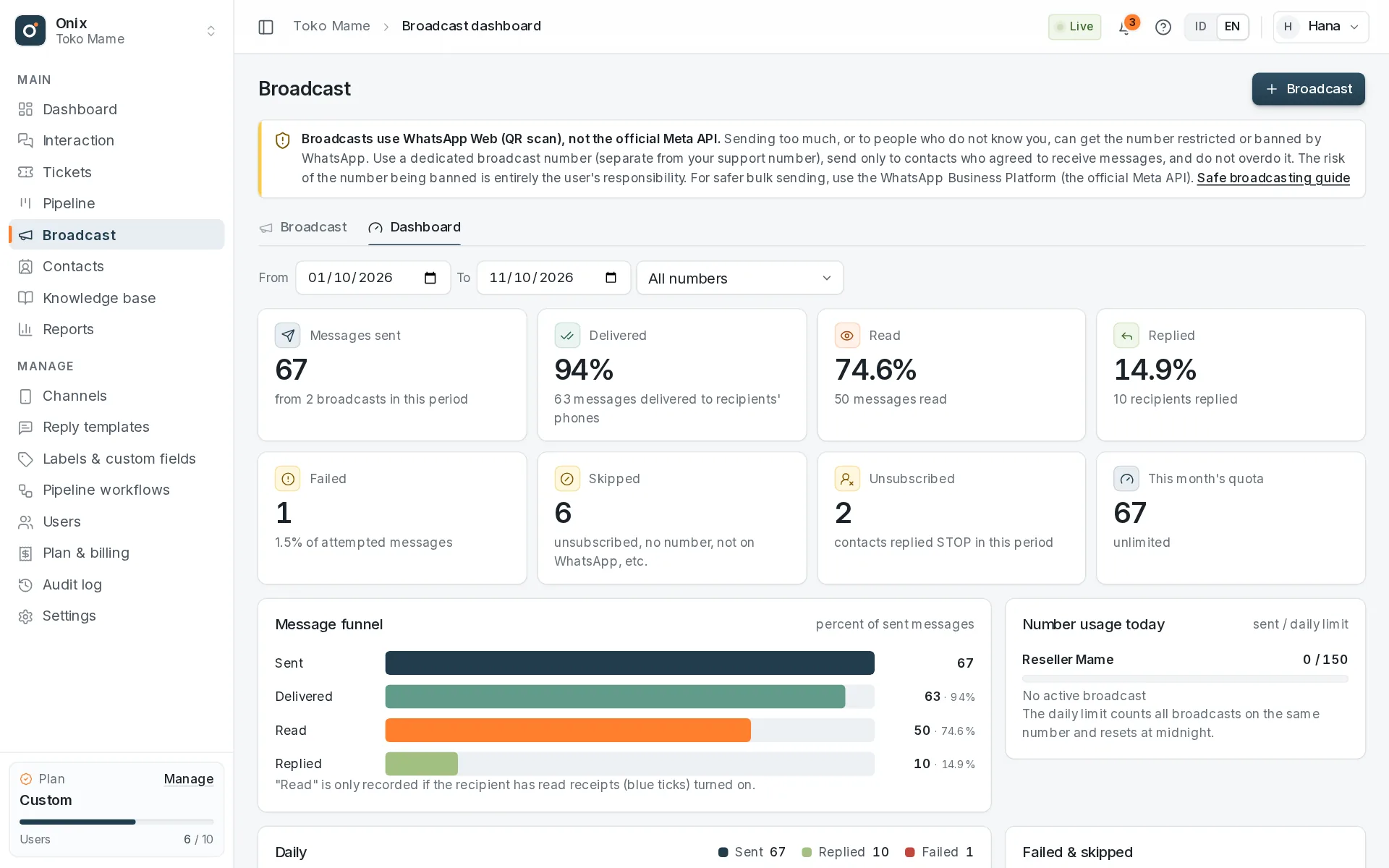
- Broadcast → Dashboard: messages sent, delivered/read/replied rates, failed, skipped, unsubscribed, this month's quota, the funnel, the daily chart, sending hours & the best hour, each number's usage today against its daily limit, failure/skip reasons, and the latest broadcasts & those with the highest reply rate.
Plans & quota
- Pro: 2,000 broadcast messages sent per month. Skipped, failed, and test messages do not count. When the quota runs out the broadcast pauses automatically and can be resumed after the quota resets at the start of the month.
- Custom: unlimited, unless set in the contract.
- Free: contact segments can still be created & downloaded; broadcasts are not available.
Access
- View broadcasts, the dashboard, reports & contact segments and Manage contact segments & broadcasts are set in Users → Roles. The Owner always has access; the default Supervisor role has both.
- Creating, scheduling, pausing, cancelling, and sending tests are app-only. API keys can only read broadcasts, recipients, reports, the dashboard, and segments — see API.
- Every important action (creating, scheduling with the risk acknowledgement, pausing, cancelling, downloading reports) is recorded in the Audit log.