Connect WhatsApp
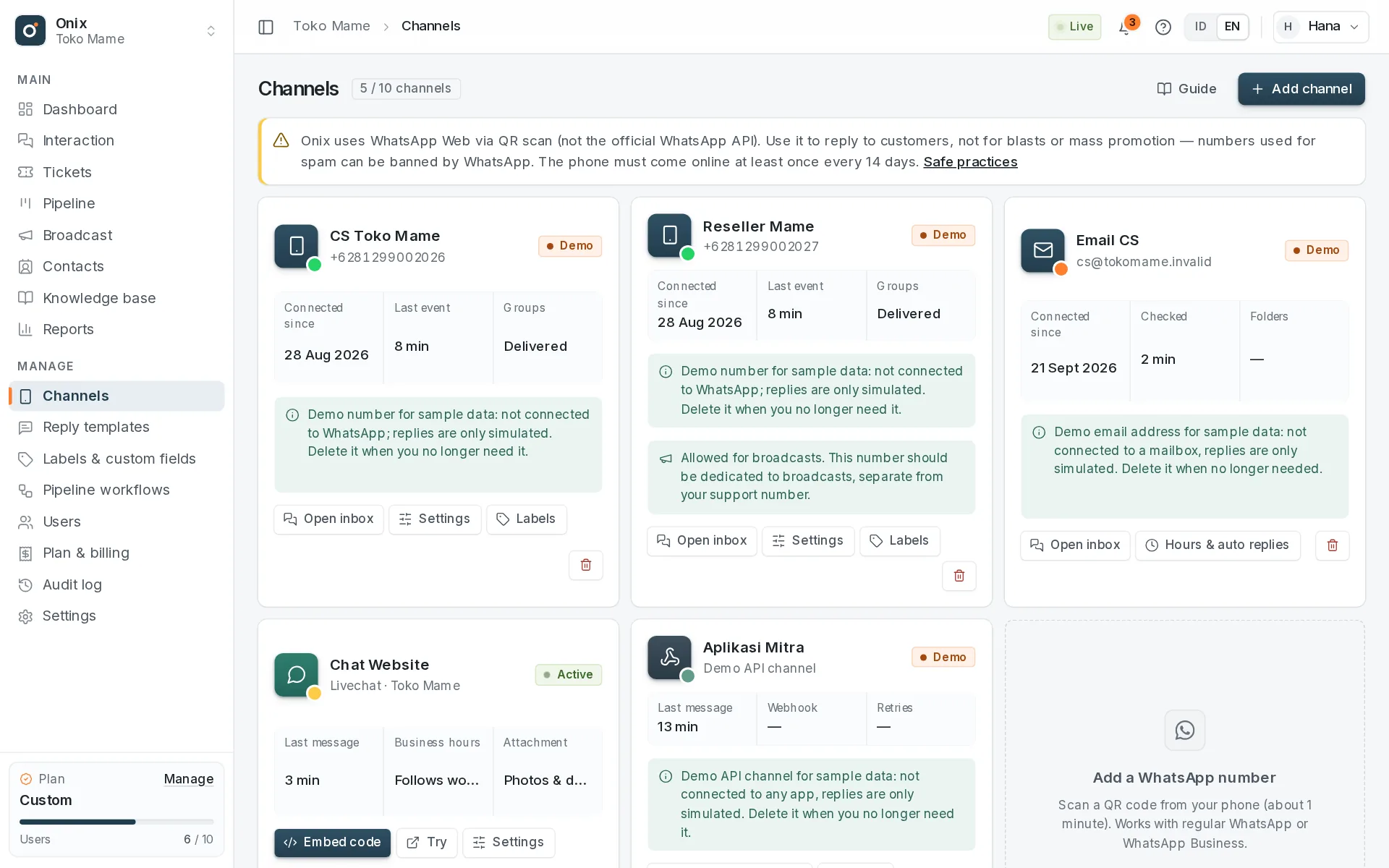
How to connect
- Open Manage → Channels, click Add channel, then choose WhatsApp (requires the Connect & manage WhatsApp numbers permission).
- Name the channel so your team can tell numbers apart, e.g. "Store CS" or "Sales", then click Continue to QR.
- On the phone that holds the number, open WhatsApp → Menu ⋮ (Android) or Settings (iPhone) → Linked devices → Link a device, and point the camera at the QR code on screen.
- Onix detects the connection automatically. The QR code refreshes itself before it expires.
Can't scan (for example, the phone is the same device as the screen)? Choose the Pairing code tab, enter the WhatsApp number, then on the phone choose Link with phone number instead and type the 8-character code shown in Onix.
Your plan sets the channel quota, shared by every channel type (WhatsApp, email, livechat, API channels): Free 1, Pro 4 channels. Numbers waiting for a scan or disconnected still take a slot until they are deleted. Customer email, chats from your website, and messages from your own app can arrive in the same inbox too — see Connect email, Livechat, and API channel.
Import chat history
Once connected, WhatsApp sends recent chat history to linked devices. Click Import history on the channel card (or right after scanning) and choose the last 7 days, 30 days, 90 days. The import runs in the background, a few chats per minute; progress shows on the channel card.
- Chats active within the last 3 days come in as Open; older ones come in as Solved so they don't pile up under Unanswered.
- Imported messages don't add unread markers and don't use the reply quota. Media is downloaded afterwards and stored privately in Onix.
- Need older messages for one customer? Open the conversation and click Fetch older history from the phone above the first message.
Number status
| Status | Meaning | What to do |
|---|---|---|
| Waiting for scan | The channel exists but the number isn't linked yet. | Click Scan QR on the channel card. |
| Connected | Messages flow in and out normally. | — |
| Connection lost | Still logged in, but the connection to WhatsApp dropped temporarily (phone offline, network issues). | Make sure the phone is online, then click Reconnect. |
| Logged out | The device was unlinked on the phone or logged out from Onix. New messages don't arrive. | Scan the QR code again. History is kept. |
| Paused | The plan dropped to Free and this number exceeds the quota. | Upgrade to Pro or choose this number in Plan & Billing. |
When a number disconnects, people with Channel access get a notification and an email (can be turned off in Settings → General). Status is checked automatically every minute.
Per-number settings
- Accept group conversations: messages from WhatsApp groups this number belongs to go to the Group tab. Turn it off if the number is for private chats only.
- Reject incoming calls: voice/video calls are rejected automatically and logged in the conversation. Fill in an auto-reply to point callers to chat; it is not counted as an agent reply.
- Add the agent's initials at the end of replies: agent replies through this number end with a line of initials, e.g.
^BS, so customers know who answered. Each member's initials are set by an admin in Settings → Members (the pen icon on the member's row); empty = automatic^+ the first letters of the name. Not used for internal notes, automatic replies, or API sends. The reply box shows the hint "Ends with ^BS". - Allow for broadcasts (off by default): this number can be chosen as the sender in the Broadcast menu (Pro & Custom). Preferably a dedicated broadcast number, separate from your support number.
- Business hours & auto replies: follow the workspace business hours or this number's own hours, then turn on the greeting (once per new conversation during business hours) and/or the after-hours message (at most once every 12 hours per conversation). They're sent as regular WhatsApp messages, never to groups, calls, history, or messages you send from the phone. See Livechat → Business hours & auto replies.
- Channel icon: the WhatsApp logo by default; replace it with your own image (square PNG/JPG/WebP, up to 512 KB) so several numbers are easy to tell apart in Interaction.
WhatsApp Business labels
Labels created and applied in the WhatsApp Business app (e.g. "New customer", "Paid") are copied to Onix a few seconds after they change on the phone: they show in the inbox list, the conversation header, and the details panel, and can be used as filters. The sync is one way — labels can't be created or applied from Onix. Regular WhatsApp has no labels.
Automatic rules (Pro)
In Manage → Labels & custom fields → WhatsApp label rules, create rules that run when a specific label is added to a chat on the phone:
- Add a contact label — e.g. WhatsApp label "VIP" → contact label "VIP customer".
- Assign to a Frontline team — only open conversations that aren't assigned to a team or person yet.
- Mark as Solved — conversations that are still open.
Label names match regardless of upper/lower case; a rule can apply to all numbers or one number. Removing a label doesn't run anything. Every change is recorded as a "WhatsApp label rule …" system message. Rules don't run on the Free plan.
Limits & safe practices
Onix uses WhatsApp Web (linked devices), not the official WhatsApp API. WhatsApp can restrict or ban numbers used for spam, blasts, or mass promotion. Use your support number to reply to customers; to message many contacts use the Broadcast menu with a dedicated broadcast number — sending is gradual with safeguards, and the risk of a ban remains with the number owner.
- Sending is limited to 30 messages per minute per number so the number isn't flagged as spam.
- The phone must come online at least once every 14 days, or WhatsApp unlinks the device. A number can have at most 4 linked devices.
- Not available yet: official WhatsApp templates (Meta API), interactive buttons & lists, opening view-once messages, WhatsApp catalog and payments.
- Don't add customers to groups without permission, and respect customers who ask not to be contacted again.
Deleting a channel
Delete channel removes the number from Onix. If the channel already has conversations, their history is archived (still viewable in the inbox) and any open conversations are closed. The quota slot frees up immediately.
Demo numbers
A workspace filled with sample data (at the account owner's request) has numbers labeled Demo in the Channels menu. These numbers aren't connected to WhatsApp: replies from the inbox are only simulated (marked as sent right away, never delivered to anyone), and there is no Scan QR, Import history, or Log out button. Demo numbers use number quota slots like any other — Delete channel when you no longer need them; their conversations are archived.