Pipeline
Workflows & stages
- Every lead goes into one workflow, e.g. "Wholesale & Resellers" or "Institutional Uniforms". Workflows are created in Manage → Pipeline workflows (the Manage workflows, stages, lost reasons & expense categories permission) and handled by one or more Back Office teams (e.g. a Sales team — create it first in Users → Teams with type Back Office).
- Stages always run in order: New → In-progress stages (0–10, e.g. Contacted, Meeting, Negotiation) → Won or Lost. Labels, colors, and the order of In-progress stages are up to you; New, Won, and Lost always exist (their labels can be changed).
- An optional probability % per stage is used for the forecast value = prospect value × stage probability.
- A stage that still holds leads cannot be deleted. A workflow that still has leads is archived (hidden & not selectable for new leads, its leads stay saved) and can be restored.
- Lost reasons and expense categories are set on the same page and apply to all workflows.
Creating leads
- From chat: open a conversation in Interaction and click Create lead (or use the Leads tab in the detail panel). The conversation's contact is locked as the main data; the conversation gets a system note "created lead LEAD-… · team …".
- Manually: the + Lead button in Pipeline, or Create lead on a contact/client profile. Choose an existing contact or fill in a new one — contacts are matched by phone number, then email, so there are no duplicates.
- Excel/CSV import: Pipeline → Import. Upload the template or your own file (max 2,000 rows), map the columns, then check before saving. Columns without a match can become new custom fields (lead or contact) — their type is guessed from the values.
- Via the API:
POST /api/v1/leads— the same path the app uses.
Each lead has a number LEAD-000123, a title (the need/opportunity), a contact, an optional client, a prospect value, a team, an optional owner,
a follow-up, and lead custom fields. If the contact already has an open lead in the same workflow, Onix warns you (you can still create it).
Kanban & table
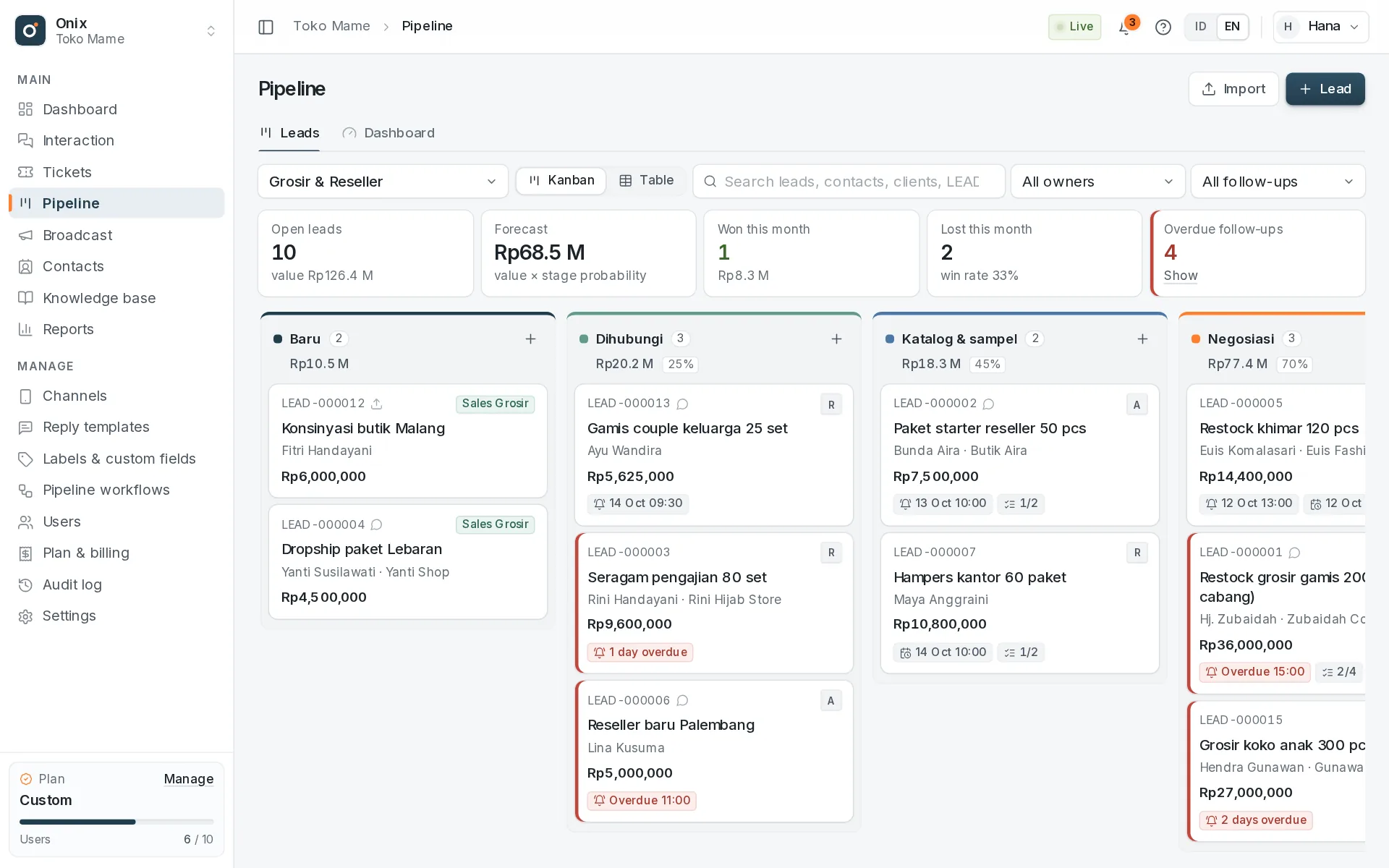
- Kanban: one column per stage with count & value. Drag cards between stages; moving to Won asks for the deal value, to Lost for a reason. The Won/Lost columns hold leads closed this month.
- Cards show the number, title, contact & client, value, owner (or team when there is no owner yet), follow-up (yellow = today, red = overdue), the next event, checklist, file count, and a marker for leads with no recent activity.
- Table: all statuses, sortable and filterable; tick several leads to move stage, assign, or set a follow-up at once.
- Search by
LEAD-…number, title, contact name/number/email, or client. Filter by owner and follow-up status. The chosen workflow & view are remembered and kept in the page address (shareable).
Lead details
Click a card to open the large detail view:
- The stage bar at the top — click a stage to move; Mark Won / Mark Lost buttons. Won/Lost leads can be reopened by moving them to a New/In-progress stage.
- Left: contact (main data), client, prospect & deal value, expected close, expense budget, team & owner, custom fields.
- Middle (tabs): Activities (calls, chats, emails, meetings, visits, notes — type
@nameto mention a teammate) plus automatic changes, Notes, Schedule (meetings, calls, visits, presentations with reminders), Checklist, Files (quotes, catalogs, sample photos), and Expenses (transport, samples, meals, reimbursements — with photo/PDF receipts and a comparison against the budget). - Right: the next follow-up, the next event, a checklist summary, and expense usage.
Follow-ups & reminders
- Set the next follow-up (time + note) on the lead or with a bulk action. When it is due, the owner (or the whole team when there is no owner) gets a notification; overdue follow-ups are marked red on the board and the dashboard.
- Events send a reminder 10 minutes to 1 day before they start.
- Reminders &
@mentionsare also sent by email — each person can turn this off in Account → Pipeline reminder emails.
Clients
- Contacts → Clients is the master list of companies, institutions, or shops. It is optional on a lead; the contact stays the main data.
- A contact is linked to one client (set it on the contact form, from the client page, or automatically when a lead is created with a client). The contact's leads without a client are linked too.
- A client page shows the profile, linked contacts, the leads you can see, and the total deal value. Clients can have custom fields too.
- Deleting a client does not delete contacts & leads — only the link is removed.
Who sees what
- Same as conversations & tickets: leads without an owner are visible to all members of the lead's team; once there is an owner, only that owner sees it. The Owner, admin roles, and members with "Can view all data" see all leads.
- A workflow is visible to the teams that handle it. A lead handed over to another team disappears from your board; from the conversation, the Leads tab still shows its summary.
- Role permissions (Users → Roles, Pipeline group): Open the Pipeline menu & dashboard, Create, edit, move & import leads, and Manage workflows, stages, lost reasons & expense categories; clients in the Contacts group: Add, edit & delete clients. By default Agent & Back Office manage leads; Supervisor gets everything. Details in Teams & data access.
- Only admins, the owner, or the creator can delete a lead.
Quota
| Free | Pro | Custom | |
|---|---|---|---|
| New leads | 10 / month | 100 / month | Unlimited (or per contract) |
Every new lead counts — from chat, manual entry, import, and the API. The quota resets at the start of the month; deleted leads do not return quota. When the quota runs out, creating leads is refused and imports skip the remaining rows.
Dashboard & reports
- Pipeline → Dashboard: open leads & value, forecast value, new leads in 7 days, overdue follow-ups, won/lost & win rate, average days to close, the funnel by stage, an 8-week trend, performance by owner, expenses by category, today's agenda, and the quota — all based on the data you can see.
- Reports → Pipeline (Reports access): download raw data CSV for leads (all columns + custom fields), activities, and expenses by workflow, status, and period.
Via the API
See API: GET/POST /api/v1/leads, GET /leads/board, POST /leads/{id}/move,
POST /leads/{id}/activities, GET /pipelines, GET /pipeline/dashboard, and /clients. Changes are announced via the
real-time event pipeline.changed.