Reply templates
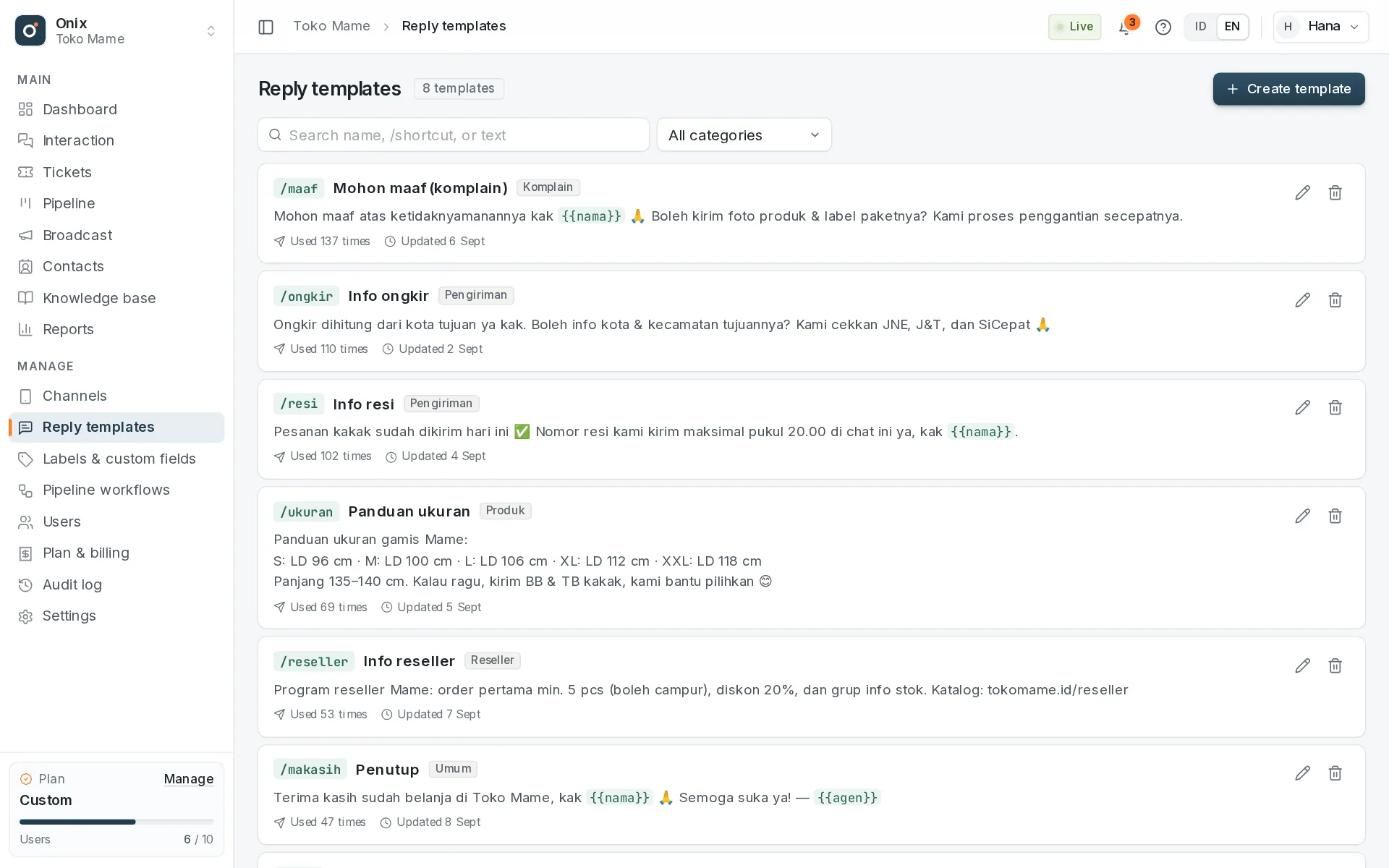
Creating a template
- Open Manage → Reply templates and click Create template (requires the Manage reply templates permission).
- Enter a name and a shortcut (lowercase letters, numbers,
-or_, e.g./shipping). The shortcut is suggested from the name. - Pick or type a category (optional) to keep the list tidy, then write the text. The preview shows the result with sample data.
- Add an attachment if needed (e.g. a PDF catalog or a product photo). It is sent along when the template is used.
Variables
Variables are filled in automatically for the open conversation:
| Variable | Filled with | Example |
|---|---|---|
{{nama}} | Contact name (or group name) | Budi Santoso |
{{agen}} | Name of the replying agent | Rani |
{{nomor_interaksi}} | The conversation's interaction number | INT-000123 |
{{tanggal}} | Today's date (reader's time zone) | 9 October 2026 |
Using a template
- In the reply box, type
/followed by the shortcut or name (e.g./shi). Pick with the arrow keys and press Enter, or click the Template button. - The template text goes into the reply box with variables filled in, and you can still edit it before sending.
- A template attachment shows as an attachment; remove it if you don't want to send it.
- Each template's usage count is tracked, so the team knows which answers are used most.
Via the API
GET /templates?interaction_id={id} returns every template with rendered (variables filled in). Send a message with
template_id and an empty text to use the template text; add "template_attachment": true to send its
attachment too. Details in the API documentation.