Contacts
Where contacts come from
- WhatsApp: a contact is created automatically when a customer writes. The WhatsApp name, photo, about, and WhatsApp Business profile are refreshed periodically. The phone number and WhatsApp privacy ID (LID) are stored as identities of the same contact.
- Manual: Contacts → Add contact. A
0812…number is read as62812…; WhatsApp messages from that number then land on this contact. - CSV import and the API (see below).
Profile
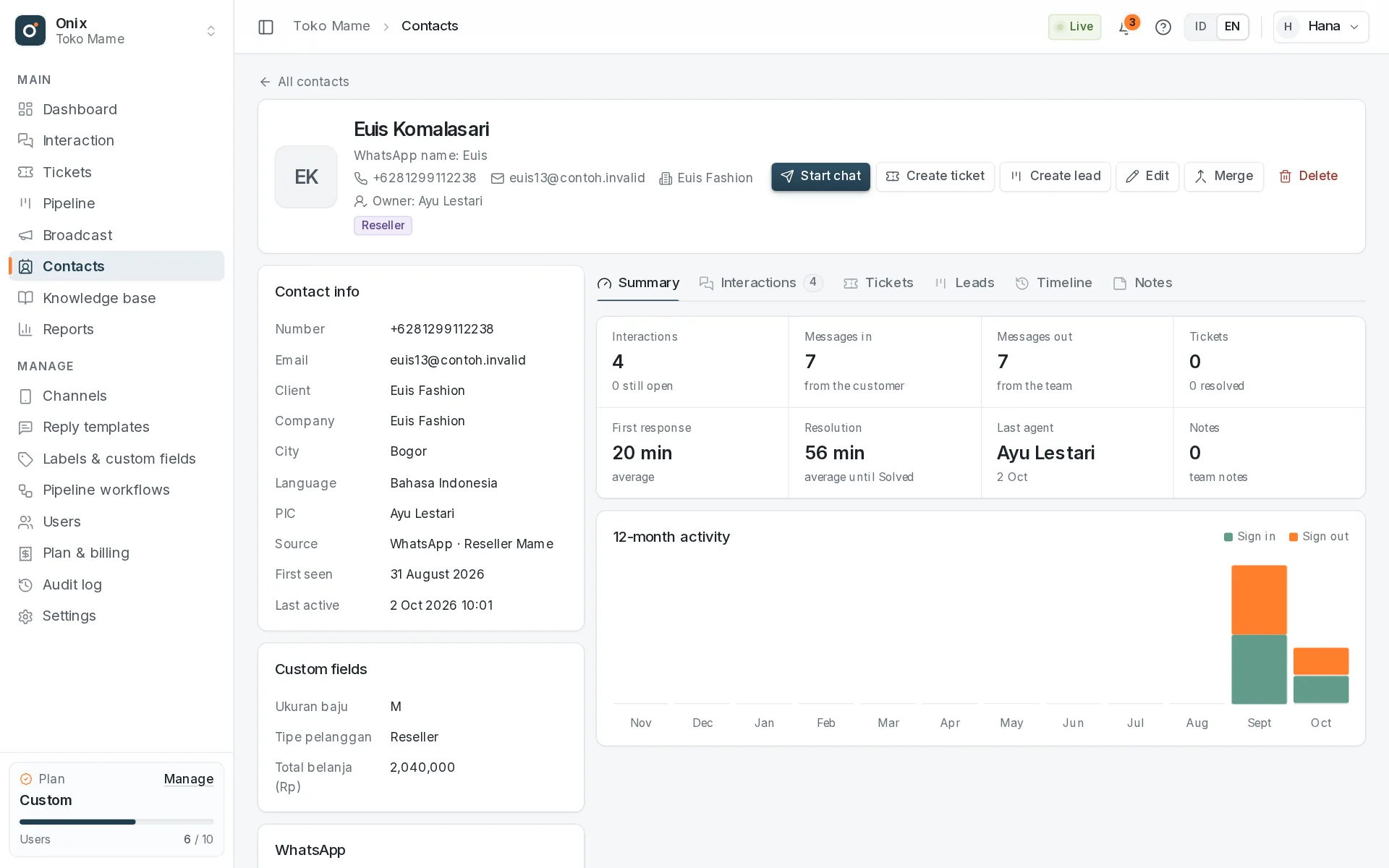
- Data: name (the WhatsApp name is kept), number, email, company, job title, address, city, language, owner (responsible agent), source, first & last seen.
- Statistics: interactions, messages in & out, tickets opened & resolved, average first response & resolution time, last agent, and 12-month activity.
- Tabs: Summary · Interactions · Tickets (with status log) · Leads (the contact's leads you can see, requires Pipeline access) · Timeline (profile changes, labels, owner, assignments, notes, tickets, leads) · Notes.
- Client: the contact's company/institution from the Contacts → Clients master list, chosen on the Edit contact form. See Clients.
- Actions: Start chat, Create ticket, Create lead, Edit, Merge, Delete.
Contact labels & custom fields
- Onix labels (Manage → Labels & custom fields) are colored, work across all channels, and can be changed by your team. They show in the inbox list and can be added/removed right from the Contact tab of the conversation detail panel. The inbox and contact list can be filtered by label.
- Unlike WhatsApp Business labels, which are only read from the phone — both show on the profile.
Custom fields for contacts, interactions, tickets, leads, and clients
Custom fields add the data your business needs. Create the field first in Manage → Labels & custom fields → Custom fields (choose Contacts, Interactions, Tickets, Leads, or Clients), then fill in its value where it belongs:
| For | Examples | Filled in on | Who can fill it in |
|---|---|---|---|
| Contacts | Birthday, clothing size, customer type | The Edit contact form, CSV import, or the Contact tab of the Interaction detail panel | Contact managers (contacts.manage) |
| Interactions | Invoice number, order source, order value | Info tab of the Interaction detail panel → Edit | Anyone who can reply to the conversation |
| Tickets | Courier, replacement tracking number, cost covered by the store | The Create ticket dialog, or the Custom fields panel on the ticket page | The creator when creating; ticket managers afterwards |
| Leads | Size, order quantity, lead source | The Create lead dialog, the lead detail, or lead import | Lead managers |
| Clients | Tax ID, number of employees, institution type | The client form (Contacts → Clients) | Client managers |
- Field types: text (up to 500 characters), number (
1.250.000is recognized), date, or choice. - Each field gets a key from its name (e.g. "Invoice number" →
invoice_number), used in the API and contact CSV import/export. The name and choices can be changed; the type cannot. - Up to 30 fields per kind of data. Deleting a field hides its values. Ticket field changes are recorded in the ticket log.
Start a chat
On a contact profile click Start chat, pick a WhatsApp number, and write the first message. An open conversation with that contact on the same number is reused; otherwise a new interaction number is created. The reply quota and per-number send limit still apply.
Merging duplicates
Merge → search for the duplicate → select it. WhatsApp numbers/identities, conversations, tickets, notes, timeline, and labels move to the contact you're viewing; empty fields are filled from the duplicate; then the duplicate is deleted.
CSV import & export
- Import: the first row holds column titles —
name,phone,email,company,job_title,address,city,language,labels(separate with;or|),owner(a member's email), and custom field names/keys (Indonesian titles work too). Comma or semicolon (Excel) separators are recognized. Contacts are matched by phone, then email: matches are updated (empty cells don't erase data), the rest are created. Missing labels are created automatically. Up to 5,000 rows / 2 MB per file; problem rows are reported with their row number. - Export follows the contact list filters. Cells starting with
=,+,-, or@get a leading single quote so Excel/Sheets won't run them as formulas.
Segments & broadcasts
- Contacts → Segments saves contact filters, e.g. emails ending with a certain domain, the Reseller label, has chatted with a given number, or birthdays this month from a custom date field. Counts are recalculated every time a segment is used; segments can be downloaded as CSV and used for Broadcasts (Pro & Custom). Segments are available on every plan.
- The Broadcast panel on the contact profile shows whether the contact receives broadcasts. Contacts who reply STOP/BERHENTI/UNSUBSCRIBE to a broadcast message are unsubscribed automatically; the status can be changed manually (with contact or broadcast management access). Unsubscribed contacts are always skipped by broadcasts.
- The contact timeline records broadcasts received and subscription changes.
Deleting a contact
Delete permanently removes the contact with all its conversations, messages, media, notes, and timeline — use it for customer data deletion requests (see Data Deletion). Tickets remain as internal case records, without a link to the contact.
WhatsApp groups
Groups have their own page (Group page button in a group conversation's detail panel): name, photo, description, members (matched to contacts by number), and the group's conversations.
Access
- View contacts opens the list & profiles; Edit … contacts is needed to add, edit, merge, import/export, delete, and manage labels & fields. Anyone who can view a contact can write notes; only the author can edit them.
- Members with limited channel access only see contacts from the channels they can open (plus manual/imported contacts), and their statistics only count conversations on those numbers.
Via the API
GET /contacts, POST /contacts, GET/PATCH /contacts/{id}, notes, timeline, labels, POST /interactions
to start a chat, and GET /segments (read segments). Details in the API documentation.