Knowledge base & AI
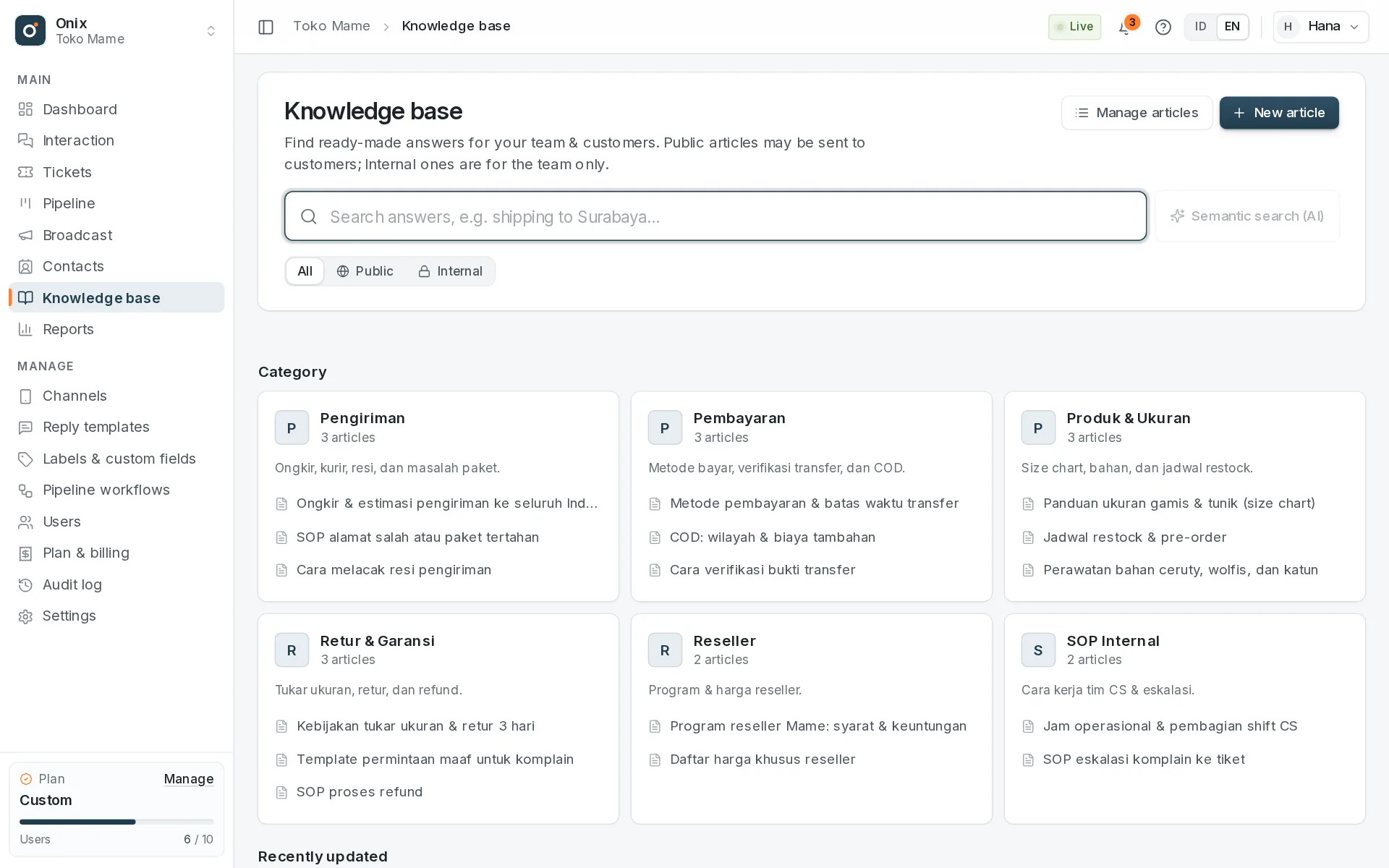
The Knowledge base page
The Knowledge base menu opens a reading & search page for everyone with access:
- A large search box at the top. Type at least 2 letters; matching words are highlighted in the results. On Pro there is a Semantic search (AI) button.
- All / Public / Internal filters articles by visibility.
- Without a keyword, the page shows Category cards (with the number of articles and a few titles) and Recently updated articles.
- The page address follows the search and category (e.g.
/kb?q=shipping), so you can share it with teammates and the Back button works.
Opening an article shows a wide reading page:
- On this page: a table of contents built from the article's subheadings, to jump to the part you need.
- Article info: category, visibility, teams who can read it, author, and when it was updated.
- More articles in the same category, and a Copy button (text ready to send on WhatsApp).
- Managers also see an Edit button and the semantic search (AI) status.
Writing & managing articles
Managers open Manage articles from the Knowledge base page: a table of all articles including drafts, with search, filters for visibility, status, and team, an AI search column, and Manage categories. New article creates an article; Edit (in the table or on the article page) opens the editor to change its title, text, and settings.
| Setting | Options | What it means |
|---|---|---|
| Status | Draft / Published | Drafts are visible to managers only. Published articles are visible to everyone with Knowledge base access (subject to the teams below). |
| Visibility | Internal | For the team only (SOPs, sensitive answers). Can be read & copied, but can't be inserted into customer replies. |
| Public | Fine to send to customers: the Insert into reply button is available. | |
| Teams who can read | Empty / one or more teams | Empty = all teams. When teams are chosen, only members of those teams see the article (see Team-only articles). |
| Category | Optional | Group articles (e.g. Shipping, Payments). Deleting a category doesn't delete its articles. |
| Tags | Up to 10 | Extra keywords, separated by commas. |
New articles start as Internal and Draft, so internal information isn't sent to customers before it has been reviewed. Article text uses a simple format:
# Heading,## Subheading,### Small section— subheadings become the table of contents on the reading page**bold**,*italic*,`code`- Lists with
-or1., and a blank line for a new paragraph - Links
[text](https://address)— onlyhttps://,http://, andmailto:addresses become links
Use the Preview tab in the editor to check the result before saving.
Team-only articles
Use these for information only certain teams need, e.g. a reseller price list for the Reseller CS team or a refund SOP for the Finance team.
| Who | Articles they see |
|---|---|
| The Owner, admin roles (e.g. Supervisor), and members with Can view all data | All articles. |
| Other members | Articles for all teams, plus team-only articles of the teams they belong to. |
- Articles someone may not see don't appear anywhere for them: the Knowledge base page, category counts, search (keyword and semantic), the widget, and insert into reply. Opened through a direct link, the page says it isn't shared with their team.
- Managers who can't view all data can only choose teams they belong to; other teams already chosen on the article stay ticked and locked. They can't edit another team's articles.
- When a team is deleted, its team-only articles move to the replacement team you choose.
- Manage team membership in Users → Teams.
Widget
- The round Knowledge base button at the bottom right of every page opens a search panel without leaving your work.
- Type at least 2 letters to search; with no keyword, the panel shows the latest articles.
- Copy copies the article as text ready to send on WhatsApp (bold, italic, and lists are converted to WhatsApp formatting). Open opens the article page in a new tab.
- Open Knowledge base at the bottom of the panel opens the reading & search page in a new tab, with the same keyword.
- In Interaction, open the widget with the KB article button in the reply box. While a conversation is open, Public articles have an Insert into reply button: the text goes into the reply box so you can edit it before sending.
Search
| Type | Plan | How it works |
|---|---|---|
| Keyword | All plans | Every word you type must appear in the title or text. Articles whose title contains the whole query come first. |
| Meaning (AI) | Pro & Custom | Press Semantic search (AI): articles with a similar meaning are found even when the words differ (e.g. "delivery cost" finds a "shipping fee" article). Results are labeled Meaning and completed with keyword results. |
To be searchable by meaning, published articles are turned into vectors (embeddings) automatically, usually within a minute. Drafts are processed once published. Managers see the status in the AI search column of Manage articles, on the article page, and in the editor:
| Status | What it means | Button |
|---|---|---|
| Ready | Can be found with Semantic search (AI); shows the number of chunks and when it was processed. | Reprocess |
| Processing | Waiting its turn (about 1 minute). | — |
| Failed | The AI service had a problem; the error message is shown. | Try again |
| Not yet | A published article that hasn't been queued for processing. | Process now |
Changing the title or text processes the article again automatically. Processing articles doesn't use your AI quota.
AI summary
- In the conversation detail panel, press Summarize. AI condenses the conversation into 3–6 points: the customer's need, key details, sentiment, current status, and the suggested next step.
- The summary is saved on the conversation and visible to teammates who can see that conversation, together with who made it and when. Press Summarize again after new messages arrive.
- Internal notes are never sent to AI; only customer messages and team replies are summarized.
AI quota
- Pro: 2,000 requests / month (fair use). Custom per contract. Free doesn't include AI.
- Each summary and each semantic search counts as 1 request. Keyword search and article processing don't count.
- Requests that fail because of an AI service problem don't use your quota. The quota resets at the start of every month; usage is shown in the widget and on the Dashboard.
Who can do what
| Permission | What it allows |
|---|---|
kb.view — Read the knowledge base | Open the Knowledge base page & widget, search, read, copy, and insert Public articles (articles for all teams and for their own teams). |
kb.manage — Write & manage | Manage articles: create, edit, publish, and delete articles; choose which teams can read them; manage categories; see drafts; reprocess semantic search. |
ai.use — Use AI (Pro) | AI conversation summaries and semantic search. |
Default roles: Supervisor has all three; Agent and Back Office can read and use AI. Change this in Users → Roles.