Inbox & groups
Layout
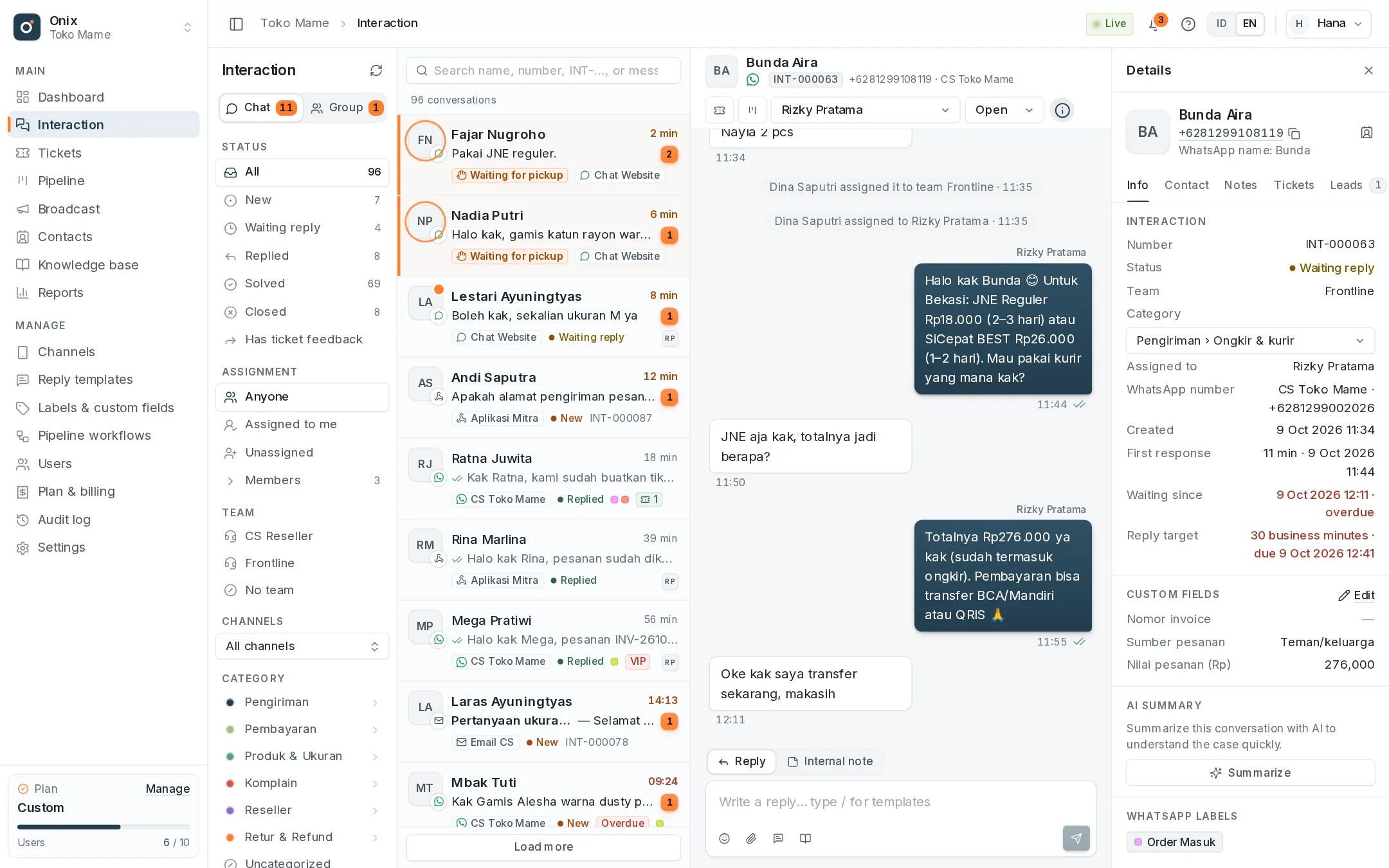
The Interaction menu has four columns: filters (Chat/Group, status, assignment, channel, WhatsApp labels), the conversation list (latest activity first), the conversation, and tabbed details (see below). On narrow screens filters and details become slide-over panels; on phones the list and the conversation take turns.
The detail panel opens with the round (i) button at the top right of the conversation. On wide screens, while the details are closed the conversation list gets wider so email subjects and message previews have more room; when you open the details, the panel slides in from the right and the list narrows. Your open/closed choice is remembered in that browser. After creating a ticket from a conversation, the details open automatically on the Tickets tab.
Detail panel: Info · Contact · Notes · Tickets · Leads
Above the tabs there is always a compact contact card (photo, name, number — click to copy) with a button to the contact profile, or group info for group conversations. The last tab you opened is remembered in that browser; the numbers on the Notes and Tickets tabs show how many there are.
| Tab | Contents |
|---|---|
| Info | Interaction number, status, team, category, assignee, WhatsApp number, created & first response times, custom interaction fields (Edit button), AI summary, and WhatsApp labels. Livechat conversations also show the visitor's details: email, phone number, starting page, device, and online status. |
| Contact | Contact labels, contact details (email, company, city, address, owner), custom contact fields, the WhatsApp business profile, and other interactions with this contact. |
| Notes | The conversation's internal notes, newest first, with a box to write a new note. |
| Tickets | All tickets from this conversation — even if you don't have access to the Tickets menu — with status, priority, team & assignee, the thread with the ticket team, and the Request update, Send message, and Create ticket buttons. After you create a ticket, this tab opens automatically. |
| Leads | For people with Pipeline access: all leads from this conversation (those held by other teams/people show as a summary) and other open leads of its contact. The Create lead button (also in the conversation header) records a sales opportunity in the Sales team's workflow — see Pipeline. |
- Notes are the same as the Internal note mode in the reply box: never sent to the customer and also shown in the conversation. Wherever they are written, they are all collected in the Notes tab — including ticket feedback & conclusions. View in conversation scrolls to that note.
- Custom fields are created first in Manage → Labels & custom fields. Interaction fields can be filled in by anyone who can reply; contact fields can only be changed by contact managers (others see the values). See Custom fields.
- Contact details & fields are shown to members with access to the Contacts menu.
Request an update & message the ticket team
- Whoever handles the conversation often has no access to tickets. From the Tickets tab, anyone who can reply to the conversation can Request update (the ticket team is notified; at most once every 15 minutes per ticket, only for unresolved tickets) or Send message (e.g. extra information from the customer). Neither is ever sent to the customer.
- Messages go into the ticket discussion marked From conversation INT-…; an update request is also recorded in the conversation as a system message and marks the ticket Update requested.
- The team's answer — feedback, a conclusion, or resolving the ticket — closes the request, appears in the ticket card's thread and as a note in the conversation, and the person who asked is notified.
- Open ticket is only shown if you are allowed to open that ticket's page.
Chat, Group, and statuses
- Chat holds private conversations — WhatsApp, email, livechat, and API channels; Group holds WhatsApp groups, with the sender's name on every message. Orange numbers on the tabs = unanswered conversations (New + Waiting reply).
- Every conversation has a channel icon on its photo: the WhatsApp logo, an envelope for email, a chat bubble for livechat, an API icon for API channels — or an icon uploaded in the channel settings. Email conversations show their subject in the list ("Subject — snippet") and above the conversation.
- When the workspace has more than one channel, each list item shows its source channel (icon + name, e.g. "CS Toko Mame" or "Email CS") in the tag row, followed by the status and other tags. Items always keep the same height; tags that don't fit (e.g. while the details are open) are hidden and remain visible in the conversation details.
- Every conversation has an interaction number (
INT-000123). When a customer writes again after the conversation is Solved or Closed, Onix starts a new interaction number, so each case is recorded separately. - Open conversations have three statuses: New — not replied to at all; Waiting reply — the customer wrote again after a reply; Replied — the last message is from the team. Replies sent from the phone count; automatic replies don't.
- Solved: done — replying again reopens it automatically. Closed: final; it can't be reopened or replied to.
- Conversations left unanswered past the first response target (Settings → General) are marked Overdue.
Livechat queue
- New livechats have no assignee and blink with a Waiting for pickup marker until someone picks them up. Members who can reply get a notification; the browser plays a sound and the tab title blinks (you can turn this off in My account).
- Click Pick up chat in the "The visitor is waiting to be picked up" bar above the messages (or in the conversation header), or just reply — replying also picks up the chat. If two agents pick it up at the same time, only one succeeds; the other sees who already has it. The visitor sees their queue position, then "… joined the chat".
- More: Livechat.
Assignment
- A conversation can be assigned to a Frontline team, to a person in that team, or left unassigned. Unassigned conversations are visible to every agent; conversations assigned to a team only to its members; conversations assigned to a person only to that person (plus admins and members with "Can view all data"). See Teams & data access.
- Click Take to assign a conversation to yourself, or Release to let it go; a released conversation stays with its team.
- People with the Assign conversations to other members permission pick a team or a member from a list grouped by team; it only shows active members who can reply and have access to that number. If a member is in several Frontline teams, pick them from the right team group. The assignee gets a notification; when only a team is chosen, every team member is notified.
- Moving a conversation to another team releases an assignee who isn't in the new team. If the conversation you have open moves to another team or person, Onix closes it and lets you know.
- Turn on Auto-assign in Settings → General so unassigned conversations go to the first agent who replies (their Frontline team is filled in too when they're in only one).
- Every status and assignment change is recorded as a system message in the conversation.
Replying
| Feature | How |
|---|---|
| Send | Enter sends, Shift+Enter adds a new line. |
| Templates | Type / at the start of a line, pick with the arrow keys and press Enter. Variables such as the customer's name are filled in. See Reply templates. |
| Attachments | Click the paperclip, paste, or drag a file onto the reply box: photos, videos, audio, PDFs, and Office documents up to 16 MB. Stickers, locations, and contact cards are available too. |
| Quote | Hover over a message and click the reply icon; the customer sees the quoted message. |
| Reactions | The smiley icon on a message. Customer reactions show up too. |
| Edit & unsend | Your own text messages can be edited for 15 minutes after sending; messages can be unsent (deleted for everyone) for up to 2 days. |
| Internal notes | Choose Internal note above the reply box. Notes are only visible to the team, are never sent to the customer, and don't use the quota. |
| Livechat & API channels | Text, one attachment per message, emoji, templates, KB articles, and internal notes. Quoting, reactions, editing, and unsending aren't available; stickers, locations, and contact cards are WhatsApp only. |
Outgoing message status: clock = processing, ✓ = sent, ✓✓ = delivered, colored ✓✓ = read. Failed messages are kept with the reason and can be resent. While you type, the customer sees "typing"; likewise, a customer typing indicator appears below the conversation.
The Free plan has a quota of 20 replies per day for the whole team (counted in the workspace time zone). The remaining quota shows in the reply box. Auto-replies and internal notes don't count.
Email conversations
- One email thread = one conversation. Email cards show From, To, Cc, the body without the quoted history (Show quoted text), attachments, and View original email (images from the internet stay blocked until you allow them).
- The email reply box is larger and supports bold, italic, underline, lists, and links; Ctrl/⌘+Enter sends. To is filled in automatically, you can add Cc or Reply all, attach several files, and the channel signature is added automatically.
- More: Connect email.
Broadcast replies
Broadcast messages do not create new conversations, so the inbox does not fill up. When a recipient replies, the reply arrives like a normal chat and the broadcast message they replied to appears right before it, marked Broadcast BC-… · broadcast name (a link to its report for anyone with Broadcast access). A STOP/BERHENTI/UNSUBSCRIBE reply adds a system note that the contact unsubscribed from broadcasts.
Media
Photos, videos, audio, and documents from customers are downloaded right away and stored privately in Onix (no reliance on expiring WhatsApp links). Click a photo to enlarge it; documents can be downloaded. Files that are too large are flagged so you can open them on the phone.
Tickets & contact labels in the inbox
- Click Ticket in the conversation header to escalate a case to another team (see Tickets). Tickets from the conversation show in the Tickets tab of the detail panel; the conversation list shows the number of active tickets.
- Ticket feedback and conclusions arrive as internal notes linked to the ticket. Until read, the conversation shows a Feedback marker and a banner (Use as draft, Open ticket, Mark as read). The Has ticket feedback filter collects them.
- Contact labels (Onix labels) can be added/removed in the Contact tab of the detail panel and used as filters. View contact profile opens the full profile; group conversations have a Group page button.
Conversation categories
- Categories (e.g. Shipping, Payments, Complaints) are created in Manage → Labels & custom fields by members who can manage contacts. Categories can be nested up to 3 levels, e.g. Complaint › Defective product › Loose seam: choose a Parent category when adding, or click the folder+ icon on a category row to add a subcategory. A name only needs to be unique within the same parent.
- Agents choose one category (at any level) per conversation in the Info tab of the detail panel; the choices show the full path. Changes are recorded as system messages.
- Filter the list with the Category section in the filter column (including Uncategorized). Choosing a parent shows that category's conversations including its subcategories, and its subcategories appear below it to narrow down further.
- Deleting a category moves its subcategories and conversations to its parent (when a top-level category is deleted, its conversations become uncategorized). Reports per category add subcategories up into their parent.
AI summary & articles
- AI summary (Pro): in the Info tab of the detail panel, press Summarize to condense the conversation into 3–6 points. The summary is saved and visible to teammates who can see that conversation.
- KB article: the button in the reply box opens the Knowledge base widget. Public articles can be inserted into the reply and edited before sending.
- More in Knowledge base & AI.
Target markers (Pro)
- On Pro & Custom, conversations waiting for a reply get a yellow Close to target marker (80% of the target used) and a red Past target marker, counted in business hours against their assignee's (or team's) target. The Info tab shows the Reply target and its due time. On Free, Past target uses the First response target in Settings → General.
- The assignee is notified when a conversation gets close to and passes its target; supervisors when it is far past. See KPIs & SLA.
Search & filters
- Date received: fill in From and/or To in the filter column to show conversations that came in during those dates (your time zone). The counts per status follow the filter.
- Search accepts contact names, group names, part of a phone number, an interaction number (
INT-000123), or message text. - Assignment filter: anyone, assigned to me, unassigned, or a specific member. Team filter: my teams, no team, or a specific Frontline team.
- Channels (shown when the workspace has more than one channel): click to open the channel list — the channel icon (WhatsApp, email, livechat, API, or an uploaded icon),
name, and number/address. Tick one or more channels; the default is All channels. Ticking every channel is the same as All channels.
The list and the counts per status follow your choice, and it is kept in the page address (
?channel_ids=1,2). Only channels you have access to are listed. - WhatsApp Business labels can be used as filters too.
Who can do what
| Permission | Allows |
|---|---|
| View conversations | Opening the inbox according to the member's channel access (all channels or selected channels) and team. |
| Reply & change status | Replying, notes, Solved/Closed, taking/releasing conversations for themselves, and picking up livechats. |
| Assign to other members | Choosing the team & assignee, unsending other members' messages. |