Teams & data access
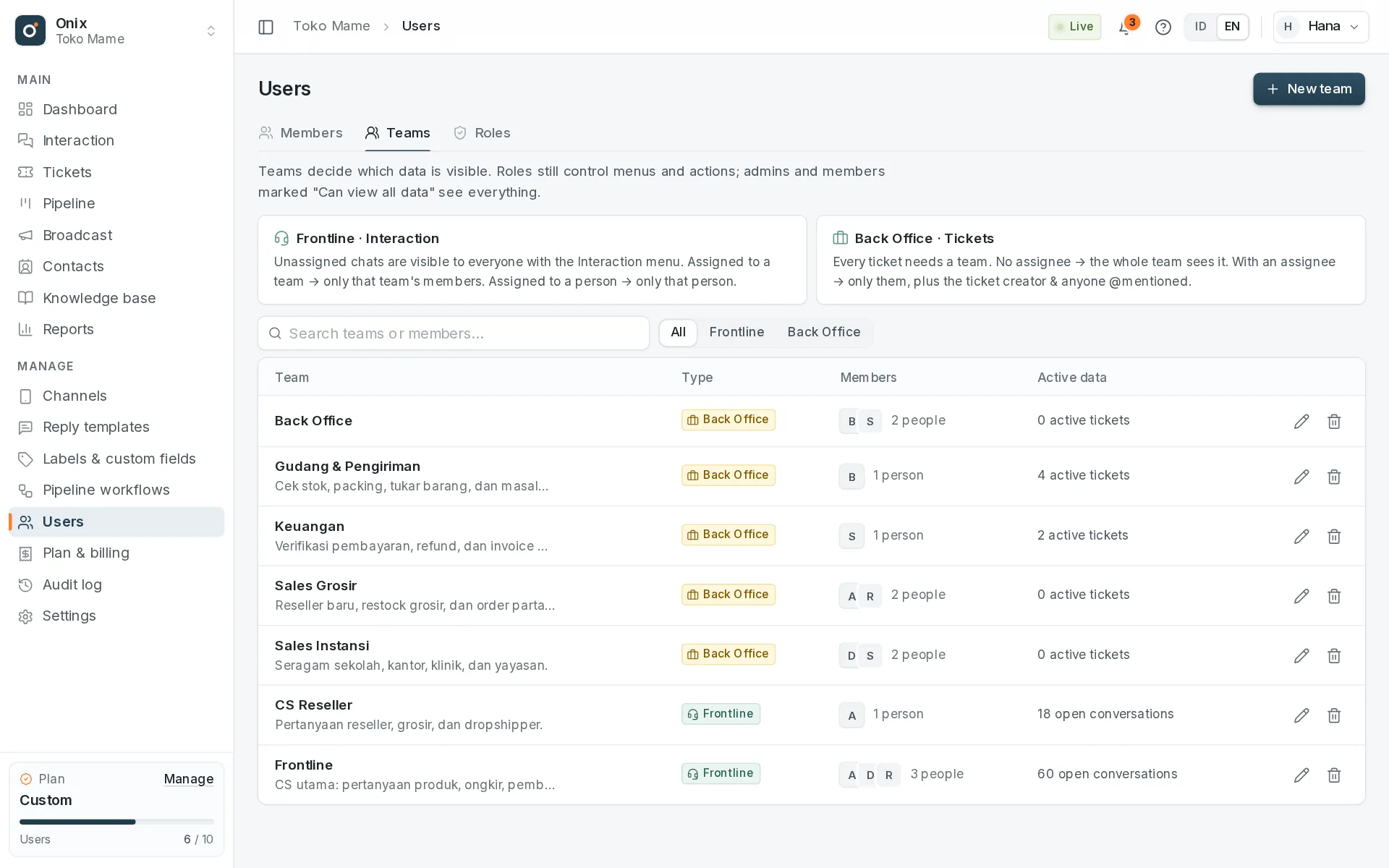
Two kinds of team
| Type | Handles | Examples |
|---|---|---|
| Frontline | Interaction: WhatsApp private chats & groups. | CS Jakarta, CS Surabaya, Night shift |
| Back Office | Escalated tickets and modules outside Interaction. | Warehouse, Finance, Technical |
- Every new workspace starts with the Frontline and Back Office teams. Add, edit, or delete teams in Users → Teams.
- A member can belong to several teams, for example one Frontline team and two Back Office teams.
- A team's type is chosen when it is created and cannot be changed.
Who sees what
| Data | Visible to |
|---|---|
| Unassigned conversation | Everyone with access to the Interaction menu (and to its WhatsApp number). |
| Conversation assigned to a Frontline team | Only that team's members. |
| Conversation assigned to a person | Only that person; the other team members no longer see it. |
| Ticket without an assignee | Every member of the ticket's Back Office team. |
| Ticket with an assignee | The assignees, the ticket's creator, and members @mentioned in the discussion. |
| Pipeline leads without an owner | All members of the lead's team (the Back Office team that handles its workflow). |
| Pipeline leads with an owner | Only the owner. See Pipeline. |
| Contacts & clients | Not limited by team: everyone with access to the Contacts menu (clients also for those with Pipeline access). |
| Segments & broadcasts | Everyone with Broadcast access. Segment members and recipient estimates follow the channel access of the user who calculates them. See Broadcast. |
| Knowledge base articles for all teams | Everyone with access to the Knowledge base. |
| Team-only knowledge base articles | Only members of the teams chosen on the article (Frontline or Back Office), plus the Owner, admins, and "Can view all data". See Team-only articles. |
The dashboard, search, filters, real-time notifications, and the API follow the same rules: data a member may not see is not counted and cannot be opened through a link. When a conversation you have open is assigned to another team or person, Onix closes it and tells you that your access moved.
Admins & "Can view all data"
- The Owner and members with an admin role automatically see every conversation & ticket on every channel, and don't need a team. Default roles flagged as admin: Supervisor.
- The Admin role flag is set in Users → Roles, and only the Owner or an admin can change it.
- Members with other roles need at least one team. Tick Can view all data when inviting or editing a member who needs to see everything regardless of team; their WhatsApp number access still applies.
- Member managers who can't view all data cannot add themselves to a team (that would widen what they see); ask an admin to do it.
Assigning
- Interaction: pick a Frontline team or a person in the assignment menu. The person must be a member of the conversation's team (admins may have no team). If that person is in only one Frontline team, the team is filled in automatically; if they are in several, choose the team first.
- Moving a conversation to another team releases an assignee who isn't in the new team, so the whole new team sees it again.
- Tickets: every ticket needs a Back Office team. Leave the assignee empty so the whole team sees and picks it up; if you set one, choose from that team's members.
- Team members are notified when a conversation or ticket lands in their team without an assignee.
Details are in Inbox & groups and Tickets.
Deleting a team
A team that still has members, conversations, tickets, or team-only knowledge base articles can only be deleted by choosing a replacement team of the same type. Its members, conversations, tickets, and articles move to the replacement, so no data suddenly disappears from the team's view.