Connect email
What is supported
| Provider | How to sign in |
|---|---|
| Gmail & Google Workspace | App Password: turn on 2-Step Verification in your Google account, then create an App Password at myaccount.google.com/apppasswords. |
| Yahoo Mail | App password: Account Info → Account security → Generate app password. |
| Zoho Mail | Regular password (make sure IMAP is on in Zoho settings); an app-specific password when two-factor authentication is on. |
| iCloud Mail | An app-specific password from appleid.apple.com. |
| Email hosting / cPanel / other | The mailbox password. Server & port are in your hosting settings (cPanel: Email Accounts → Connect Devices), usually mail.yourdomain.com. |
| Microsoft 365 / Outlook.com / Hotmail | Not supported yet: Microsoft requires OAuth sign-in for IMAP & SMTP. Coming later. |
How to connect
- Open Manage → Channels, click Add channel, then choose Email (requires access to manage channels).
- Enter the email address and password / App Password. The IMAP (incoming) and SMTP (outgoing) servers are filled in automatically when the provider is recognized; change them under Server settings if needed (SSL/TLS or STARTTLS security).
- Click Test connection. Onix tries to sign in to IMAP & SMTP (without sending anything) and explains what went wrong, e.g. "this account needs an App Password".
- Choose the folders to read, the Sent folder, how much older email to fetch, the sender name, and the signature, then click Connect.
One email address uses one channel slot; the quota is shared with every channel type — WhatsApp, livechat, API channels (Free 1, Pro 4 channels). An address can be connected to only one workspace. The password is stored encrypted and never shown again.
Incoming email
- Onix checks the mailbox every minute, so new email appears within about a minute. The Check button on the channel card checks right away.
- Onix only reads: emails in the mailbox are not deleted, moved, or marked as read. Spam is still filtered by your email provider.
- Folders: Inbox is always read; other folders (e.g. a Gmail label "Orders") can be added. Drafts, Trash, and "All Mail" can't be selected.
- Older email: when connecting, choose the last 0, 3, 7, or 30 days. Threads whose last activity is more than 3 days old arrive as Solved; older email doesn't add unread markers.
- One email thread = one conversation. Customer replies in the same thread go to that conversation; an email with a new subject becomes a new conversation. Email to a Solved/Closed conversation opens a new one (new INT number), just like WhatsApp.
- Contacts are matched by email address. If a WhatsApp contact already has the same email in their profile, the email goes to that contact; otherwise a new contact is created. Duplicate contacts can be merged.
- Not turned into conversations: automatic replies (out-of-office), bounces, email from the channel's own address, and senders on the ignore list (e.g.
noreply@,@promo.com). - Sent folder: replies sent straight from Gmail/Outlook/your phone are shown in the conversation as "Sent from the mailbox", stop the waiting time, and count toward no one's KPIs.
In Interaction
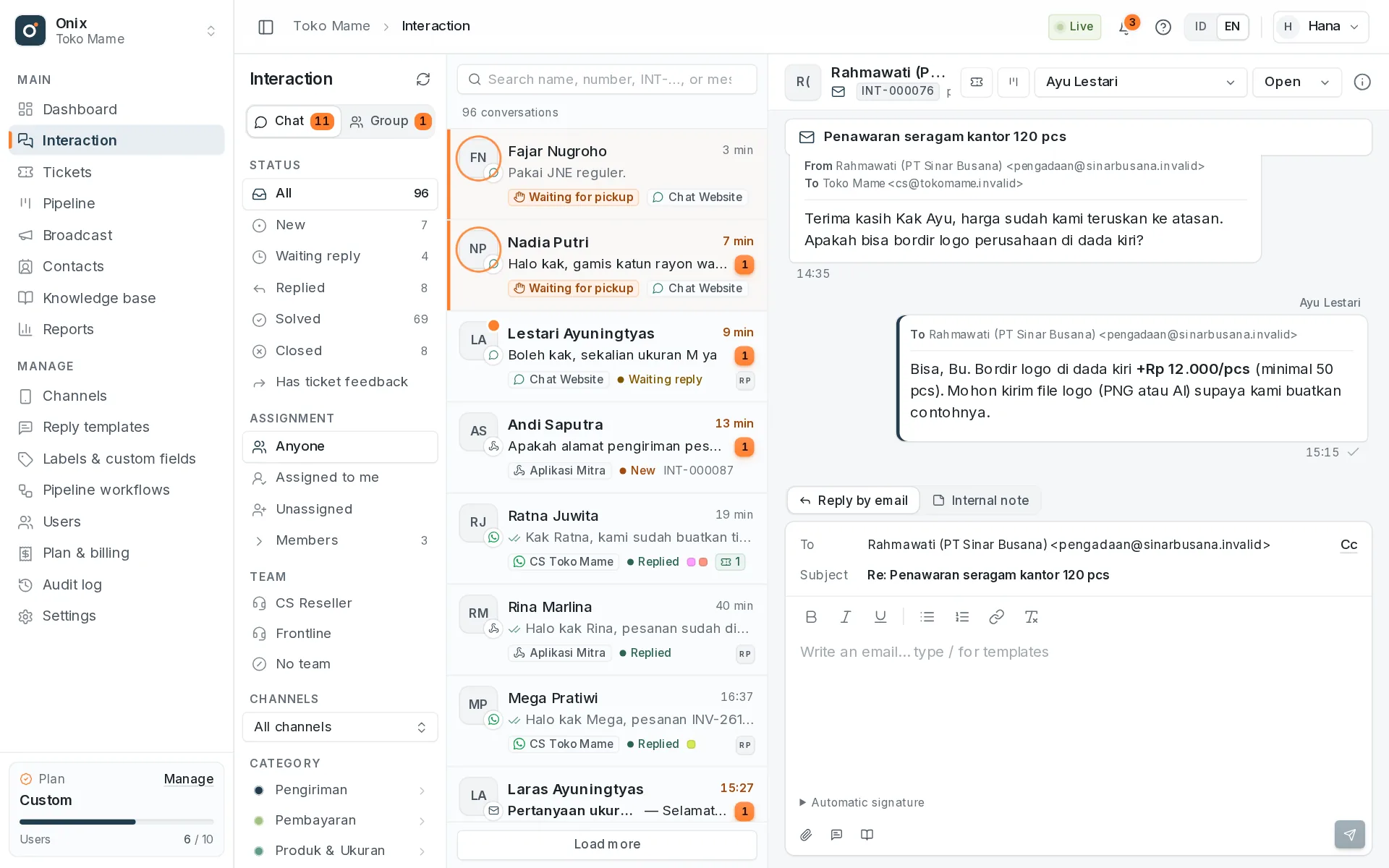
- Every conversation shows a channel icon: the WhatsApp logo, an envelope for email, a chat bubble for livechat, or an icon uploaded in the channel settings. Email goes to the Chat tab; the list shows "Subject — snippet".
- Email cards show From, To, Cc, and the clean body without the quoted history (open it with Show quoted text), attachments, and View original email — the formatted version in a safe frame without scripts. Images from the internet are blocked until you click Show images, so the sender can't tell the email was opened.
- Interaction search also searches subjects and email addresses.
Replying
- The email reply box is larger and supports bold, italic, underline, lists, and links. Pasted text becomes plain text. Ctrl/⌘ + Enter sends; Enter adds a new line. Templates (
/) and knowledge base articles can still be inserted. - To is filled in automatically (the customer's reply address). Add Cc (up to 10) or tick Reply all when the customer's email had other recipients. The subject is "Re: …" automatically so the thread isn't split in the customer's mailbox.
- Attach several files at once (up to 10 files, 20 MB in total).
- The previous email is quoted below the reply like in a regular email app, and the channel signature is added automatically.
- If sending fails (e.g. the recipient address is rejected) the message is marked Failed with the reason; click Resend after fixing it. If the email bounces later, that reply is marked Failed too.
- New email to a contact: open the contact profile → Start chat → choose the email channel, enter a subject & body. A new email always starts a new conversation.
Email channel settings
- Sender name: defaults to the workspace name, e.g. "Toko Mame". Tick Add the agent's name for "Budi – Toko Mame".
- Signature: the same minimal formatting as the reply box;
{nama_agen}(agent name) and{nama_workspace}(workspace name) are replaced when sending. - Folders to read, the Sent folder (read it / save a copy of Onix replies there — not needed for Gmail, which saves them itself), and the ignore list.
- Change password or server: tested again before saving.
- Business hours & auto replies: follow the workspace business hours or this address's own hours, then turn on the greeting and/or the after-hours message. They're sent as a reply email in the same thread (marked as an auto-reply), never in reply to auto-replies or bounces. See Livechat → Business hours & auto replies.
- Channel icon: an envelope by default; replace it with your own image (square PNG/JPG/WebP, up to 512 KB).
- Delete the channel: Onix stops reading the mailbox and deletes its password; email in the mailbox isn't touched. Conversation history stays viewable (archived) and the address can be connected again.
Problems
| Status | Meaning | What to do |
|---|---|---|
| Connected | Incoming & outgoing email works normally. | — |
| Problem | Sign-in was rejected (password changed / App Password revoked) or the server couldn't be reached several times. The reason is shown on the channel card. | Open Settings → Change password or server. Onix retries with pauses (5, 15, 30, 60 minutes) so the provider doesn't lock the account. |
| Paused | The plan dropped to Free and this channel is over the quota. | Upgrade to Pro or pick this channel in Plan & Billing. |
When a channel gets a problem, people with Channel access get a notification (and an email when enabled in Settings → General).
Email KPIs
Email has its own targets: Email first response and Email follow-up reply time (4 business hours by default), set in Settings → KPI targets; the business hours are in Settings → General or the channel's own hours. See KPIs & SLA.