Tickets
Creating tickets
- From a conversation: open it in Interaction and click Ticket in the conversation header (or Create ticket in the Tickets tab of the detail panel). The subject and the customer's last message are filled in. The conversation gets a system note "created ticket TKT-…".
- From a contact profile: click Create ticket on the contact page.
- From the Tickets menu: click New ticket for an internal ticket (a contact is optional).
- Via the API:
POST /api/v1/tickets— the same path the app uses (and, later, the AI agent).
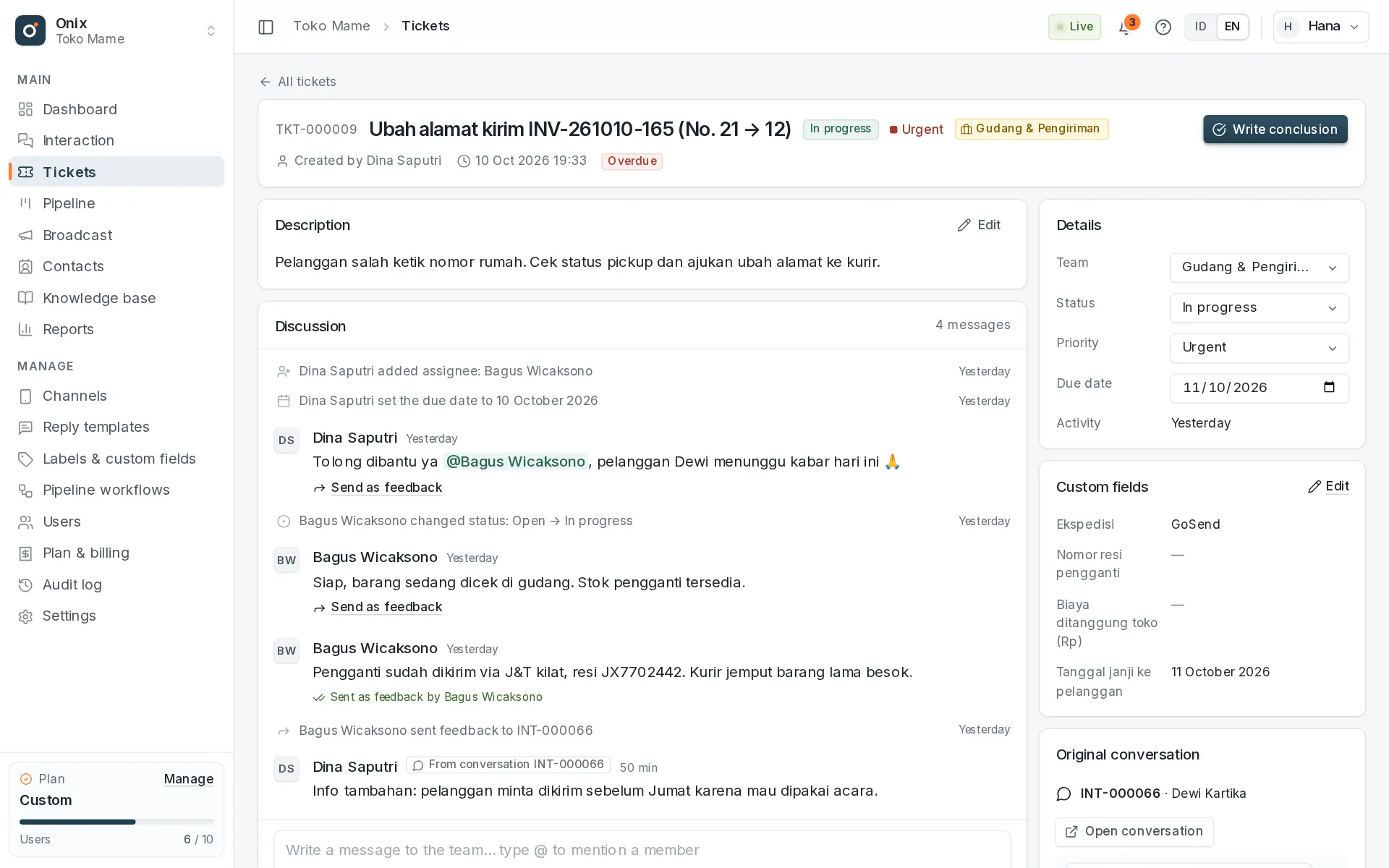
Every ticket has a TKT-000123 number, subject, description, priority (Low, Normal, High, Urgent), an optional due date, a Back Office team
(required), and optional assignees from that team. Assignees get a notification and an email (can be turned off in Settings → General);
when no assignee is set, every team member is notified and anyone in the team can pick it up.
Custom ticket fields
- Need extra data, e.g. the courier, a replacement tracking number, or a cost covered by the store? Create the field first in Manage → Labels & custom fields → Custom fields → Tickets (text, number, date, or choice).
- Ticket fields appear in the Create ticket dialog (optional) and in the Custom fields panel of the ticket page. Ticket managers change them with the Edit button; every change is recorded in the ticket log ("changed fields: …").
- Via the API:
custom{key: value}onPOST /ticketsandPATCH /tickets/{id}. More in Custom fields.
Who can see a ticket
- Participants can always open it: assignees, the creator, and members mentioned with
@namein the discussion (they become followers). - Tickets without an assignee are visible to every member of their Back Office team (on the WhatsApp numbers they can open). Once a ticket has an assignee, other team members no longer see it; if the last assignee is removed, the whole team sees it again.
- The Owner, admin roles, and members with "Can view all data" see every ticket. Details are in Teams & data access.
- Changing status, priority, due date, team, and assignees requires Change … tickets access. Moving a ticket to another team releases assignees who aren't in the new team. Followers can unfollow themselves.
Statuses
Open → In progress → Waiting → Resolved → Closed. Statuses can move freely (a finished ticket can be reopened). The Active tab in Tickets holds Open, In progress, and Waiting. Active tickets past their due date are marked Overdue. Every change is recorded in the ticket log.
On Pro & Custom, tickets without a due date have a resolve-by target based on their priority (defaults: Urgent 4 hours, High 8, Normal 24, Low 72 — counted in business hours, changeable in Settings → KPI targets). The ticket page & list show the target; the assignee is notified as it gets close and passes it, ticket managers when it is far past. See KPIs & SLA.
Discussion room
- Discussion messages appear instantly (real time) for every participant viewing the ticket.
- Type
@to pick a member to mention; they get a notification (and an email if enabled) and can open the ticket. - Attach up to 5 files per message (photos, video, audio, PDF, Office documents). Files are stored privately and only participants can download them.
- Ctrl+Enter sends the message.
Feedback & conclusions for the agent
- Send as feedback under a discussion message forwards it to the original conversation as an internal note linked to the ticket (not sent to the customer).
- Write conclusion saves a resolution summary on the ticket and sends it to the original conversation. Members who can change tickets can also mark the ticket Resolved at the same time.
- The agent handling the conversation (the assignee, or the first one who replied) is notified. In the inbox the conversation shows a Feedback marker and a banner with Use as draft, Open ticket, and Mark as read. The Has ticket feedback filter collects conversations that still need follow-up.
- The marker clears when the agent marks it read, replies to the customer, or marks the conversation Solved/Closed.
Messages & update requests from the conversation
- The agent handling the original conversation — even without access to the Tickets menu — can Request update or Send message from the Tickets tab of the conversation's detail panel (see Inbox).
- These go into the discussion room marked From conversation INT-… or Update request from INT-…; the ticket's assignees (or the whole team when there is no assignee yet) are notified.
- While a request is unanswered, the ticket header and the ticket list show Update requested. A request counts as answered when the team sends feedback, writes a conclusion, or resolves the ticket — and the person who asked is notified.
Quota
The number of tickets per month follows your plan (see Plans & billing); tickets count when created and the quota resets at the start of each month in the workspace time zone. This month's usage is on the Dashboard.
Via the API
GET /tickets, POST /tickets, PATCH /tickets/{id}, the discussion at /tickets/{id}/messages, feedback, and
conclusions. Details in the API documentation.